
Billing Management Guide
A general guide to managing billing reports in OrthoScribe, from creating a report and reviewing coding recommendations to completing claims and exporting results.
Before you begin
Billing Reports is available to practice administrators, coding administrators, and OrthoScribe staff administrators.
OrthoScribe compares current billing with AI recommendations for E&M, procedure CPT, urgent-care and after-hours, order CPT, and ICD-10 coding.
Existing claims must be updated in athenaOne manually. Recommendations begin in a staged state. Accept and Accept All approve those staged recommendations in OrthoScribe, but they do not update an existing Athena claim. Update its codes and any recommended place of service in athenaOne before marking the claim complete.
1. Open Billing Reports
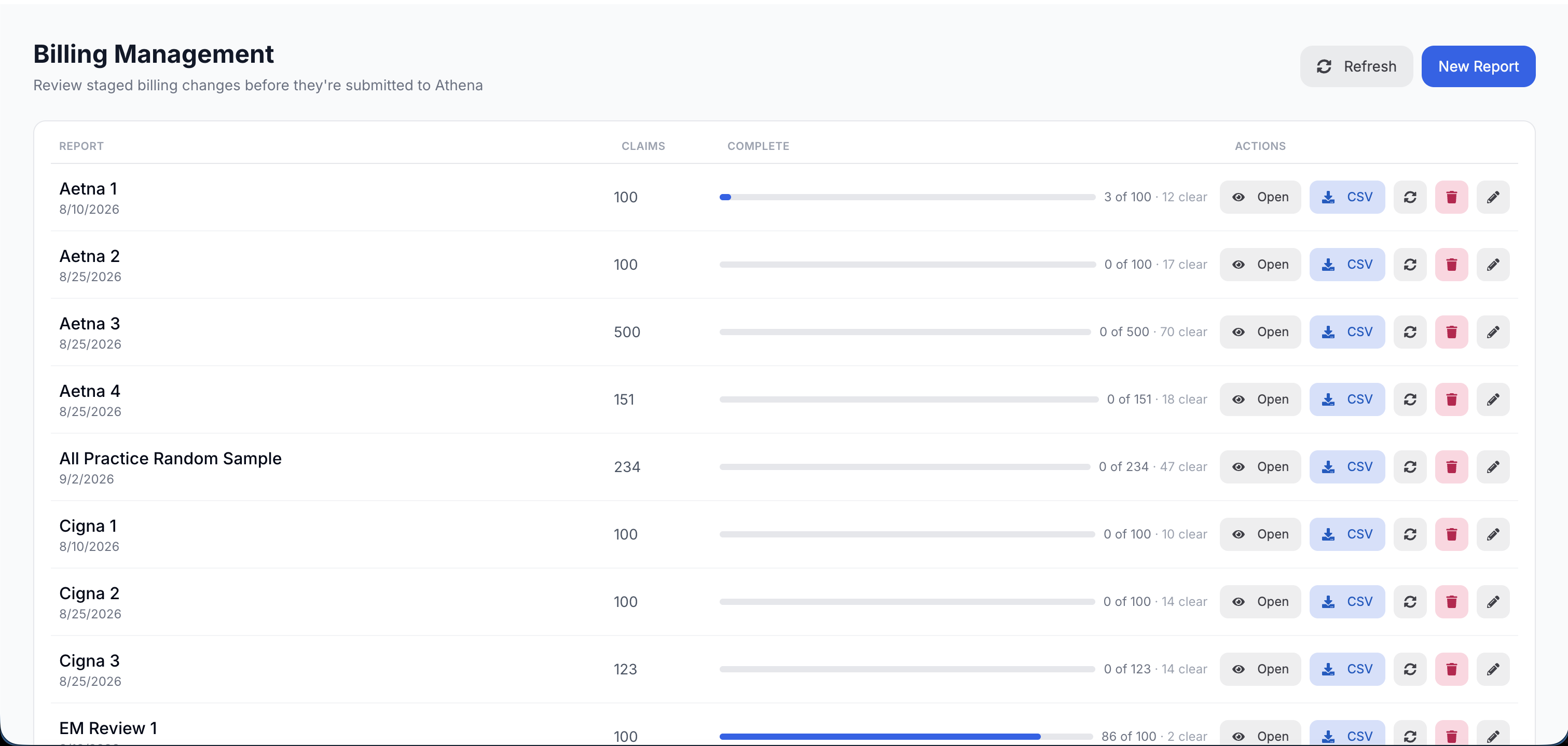
Select Billing Reports in the OrthoScribe navigation. The reports list shows each report's name, creation date, claim count, completion progress, clear count, processing status, and actions.
You can open a report and begin reviewing while its remaining claims are still processing.
2. Create a report
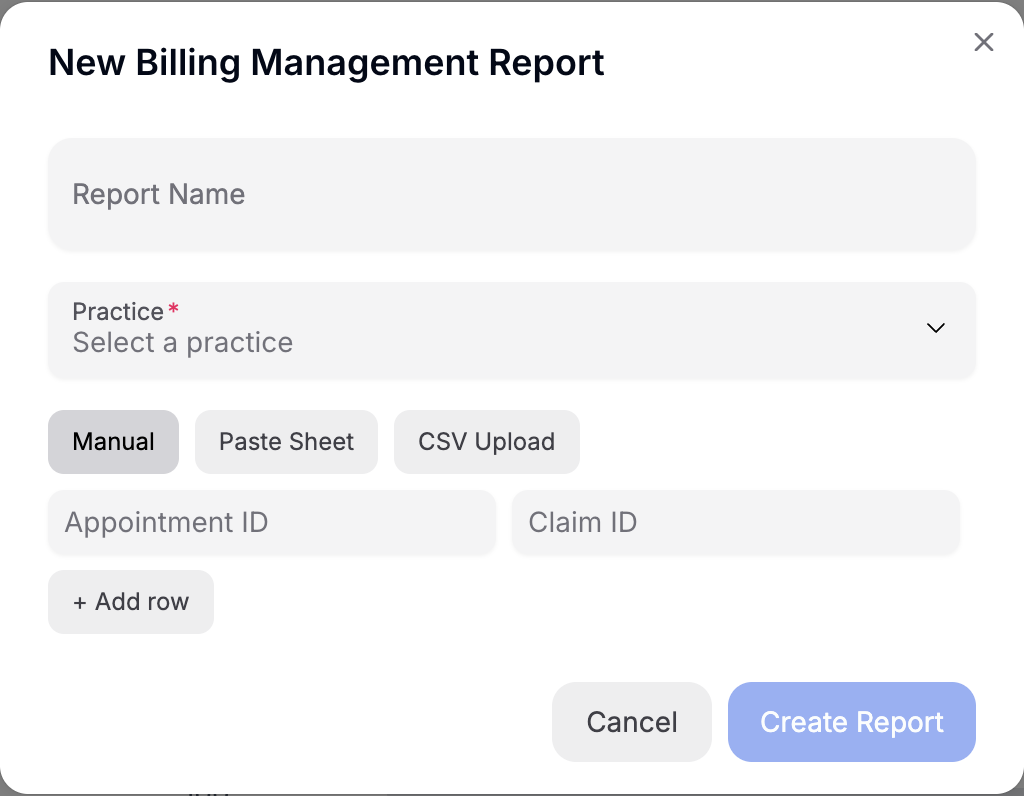
Click New Report and enter a report name. Your practice is selected automatically or available in a practice selector, depending on your role.
- Manual: enter an appointment ID and an optional claim ID for each row.
- Paste Sheet: paste rows copied from Excel or Google Sheets.
- CSV Upload: upload a CSV with appointment and claim identifiers.
For pasted sheets and CSV files, the default column names are apptid and claimid. You can change these names in the form. Appointment IDs are required, claim IDs are optional, and extra columns are ignored.
When enabled for your practice, the form also shows Create claims on submit. This option applies only to appointments that do not have a claim: submitting a reviewed row creates a new Athena claim with the approved codes. It does not edit an existing claim.
Click Create Report. OrthoScribe collects encounter, claim, note, insurance, and coding information from Athena and generates the review.
3. Understand the reports list
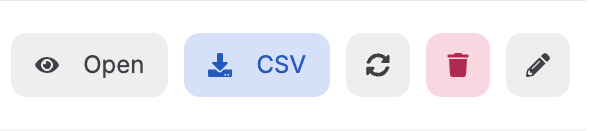
- Open: enter the claim-review workspace.
- CSV: download the current results.
- Reprocess: generate a fresh audit; see step 12 before rerunning reviewed work.
- Edit: rename the report.
- Delete: permanently remove the report; staff administrators only.
The completion bar counts claims marked complete or successfully submitted, not claims that merely finished AI processing. A clear claim has no recommended coding changes, but still needs your verification and completion.
4. Use the claim queue
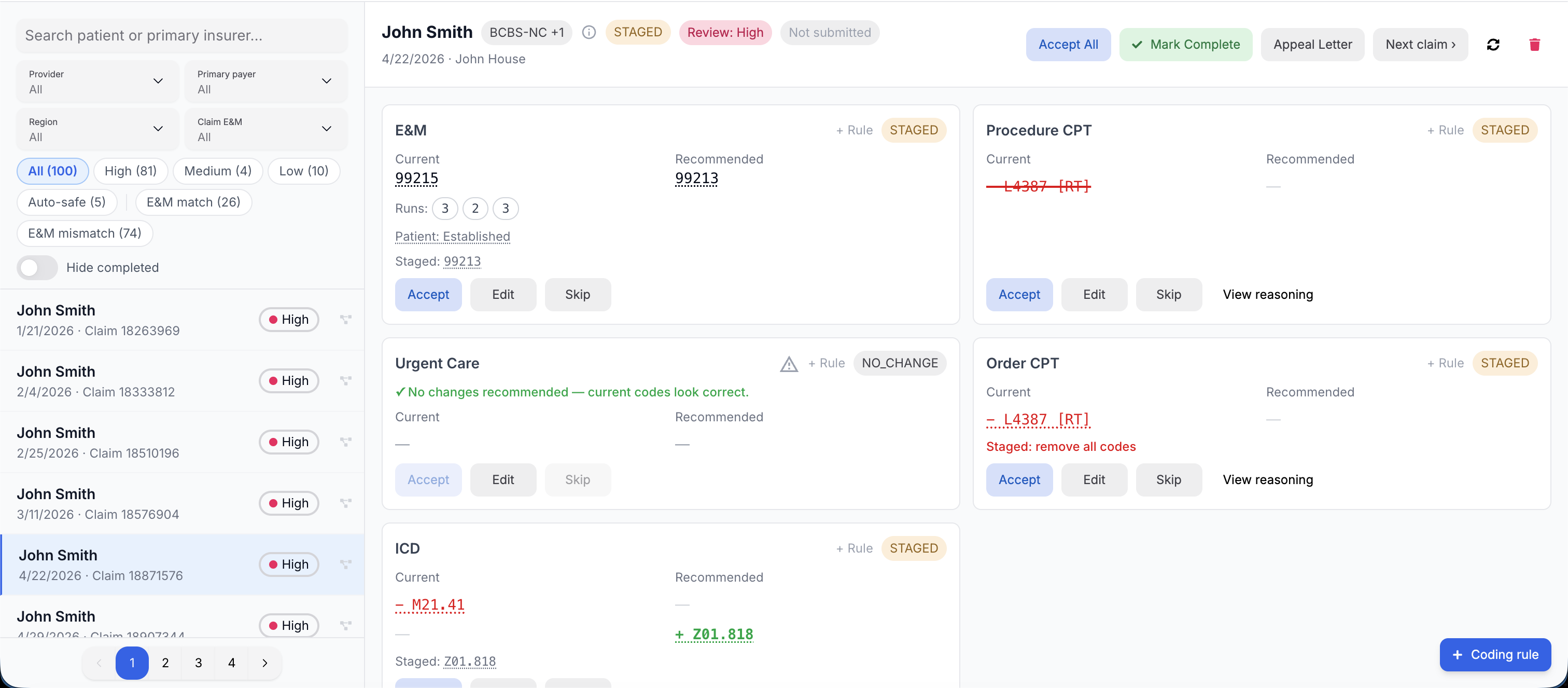
The workspace has a claim queue on the left and the selected patient's coding review on the right. Search by patient name or primary insurer.
Filter by provider, primary payer, region, current claim E&M code, review level, and E&M match or mismatch. Review-level options are All, High, Medium, Low, and Auto-safe. Start with higher-review claims.
Turn on Hide completed to remove completed claims from the queue. There is no separate filter for showing only completed claims.
Queue items may show the patient, visit date, claim ID or “No claim,” surgical status, completion status, and review level.
5. Understand review levels
High
Important discrepancies or risk factors require close review.
Medium
Meaningful findings should be checked.
Low
Limited review is likely needed.
Auto-safe
No meaningful coding change was detected.
Select a review-level badge to see its score, rationale, and contributing factors. The level prioritizes human review; it is not a compliance finding or provider performance score.
6. Review the encounter
Check the encounter header for the patient, visit date, provider, insurance or self-pay status, surgical status, overall review status, review level, and completion and synchronization state. A clinical-summary shortcut is also available.
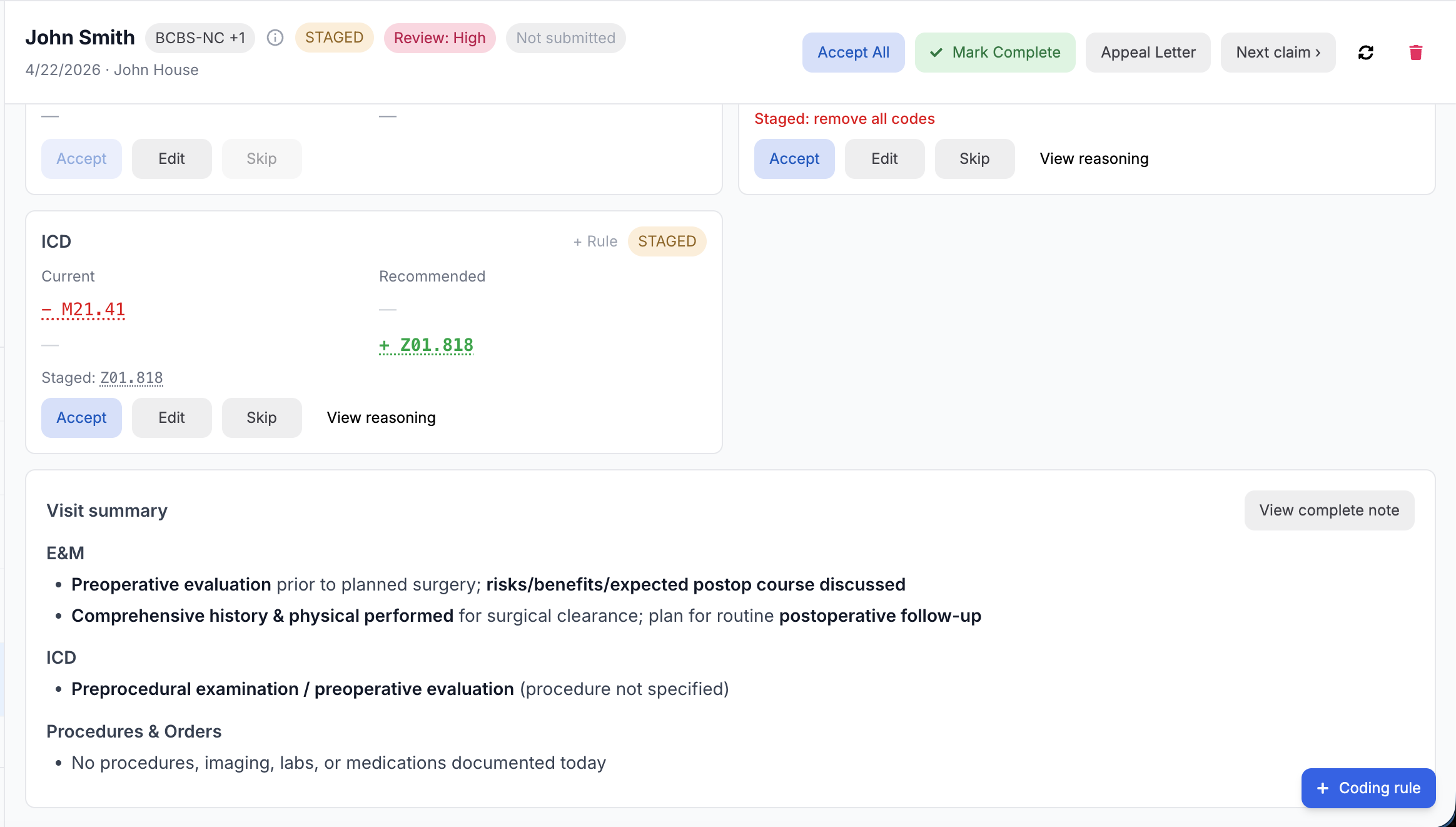
Category cards compare Current and Recommended coding side by side. Added codes appear in green; recommended removals appear in red with strikethrough. Hover over a code to see its description when available.
7. Review each coding category
- E&M: current and recommended codes, new or established patient classification, time-based billing, and AI consensus-run details.
- Procedure CPT: procedure codes, modifiers, and units.
- Urgent Care: after-hours or urgent-care recommendations and any recommended place-of-service change.
- Order CPT: codes linked to imaging, laboratory, or other clinical orders.
- ICD: current and recommended diagnosis codes.
Surgical encounters generally omit office-visit E&M and urgent-care cards. Codes marked with a dagger (†) were present on the encounter but outside the AI audit. Locked ICD codes are linked to clinical orders and cannot be removed here.
8. Accept, edit, or skip recommendations
- Accept: approve the already-staged recommendation for that category.
- Edit: replace it with your chosen coding.
- Skip: leave the category unchanged.
- View reasoning: read the explanation, when available.
Accept All approves every remaining staged recommendation for the encounter. It does not update Athena or submit codes.
When editing CPT codes, separate codes with commas, put modifiers in brackets (for example, 20610 [RT]), and use x2 for multiple units when needed. ICD edits use a diagnosis-code search.
9. Consult the note and supporting information
Read the Visit summary below the coding cards when available. Click View complete note to read the source note captured from Athena. For complex cases, open detailed reasoning and applied practice rules.
Eligible E&M encounters may offer an Appeal Letter action. It generates a draft from the encounter's E&M audit that you can copy for further review and use.
10. Finish the claim

Changes to existing claims must be applied manually in athenaOne.
- Make the required coding and place-of-service changes in athenaOne.
- Return to OrthoScribe.
- Click Mark Complete.
The claim-workspace Submit action is currently disabled. Use the manual workflow above for existing claims. If your practice has Create claims on submit, that separate capability applies only to appointments without an existing claim.
Mark Complete moves you to the next unfinished claim. Completed rows remain available; use Reopen to restore one to unfinished work. Enable Hide completed to focus on the remaining claims.
Use Next claim to move forward without marking the current claim complete.
11. Create a new coding rule
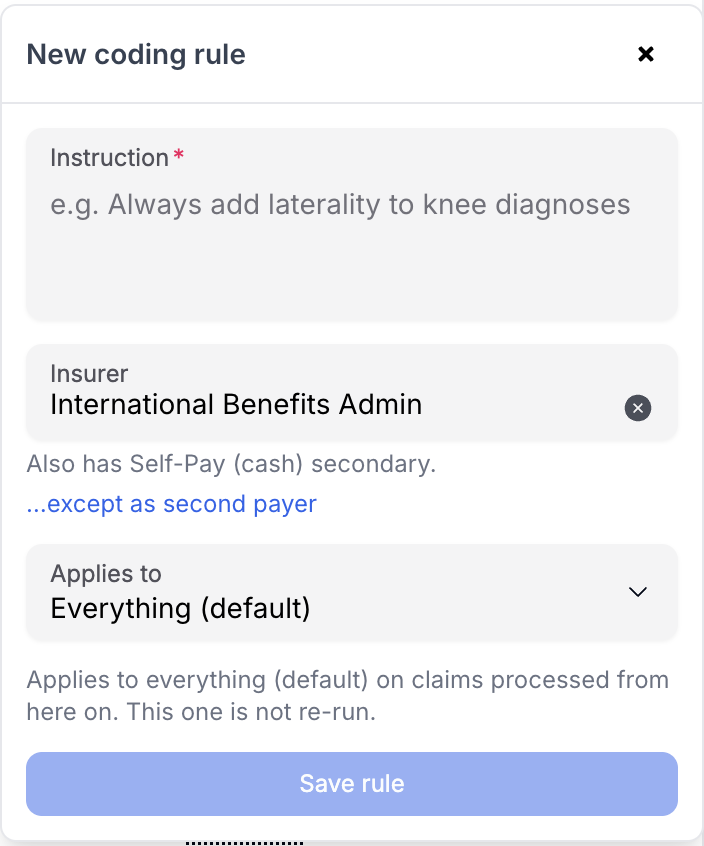
Click Coding rule to propose a practice-specific instruction. Enter the instruction, an optional insurer restriction, and one or more coding categories.
Rules go to an administrator for approval and affect future claims only. Saving a rule does not reprocess or change the current encounter.
12. Export or reprocess the report

Click Download CSV to export patient, encounter, insurer, E&M, status, error, and appeal-letter information.
Reprocessing creates a fresh audit and can overwrite accepted or edited recommendations. When completed work exists, choose:
- Reprocess incomplete (recommended): preserve finished claims and rerun unfinished work.
- Reprocess all: replace every claim's existing audit.
Deleting or individually reprocessing rows is restricted to staff administrators.